








Menu-in · How it works
From a file to a shared catalog.
Create your business, prepare your catalog and check the design. Share a link or QR code without requiring customers to install an app.
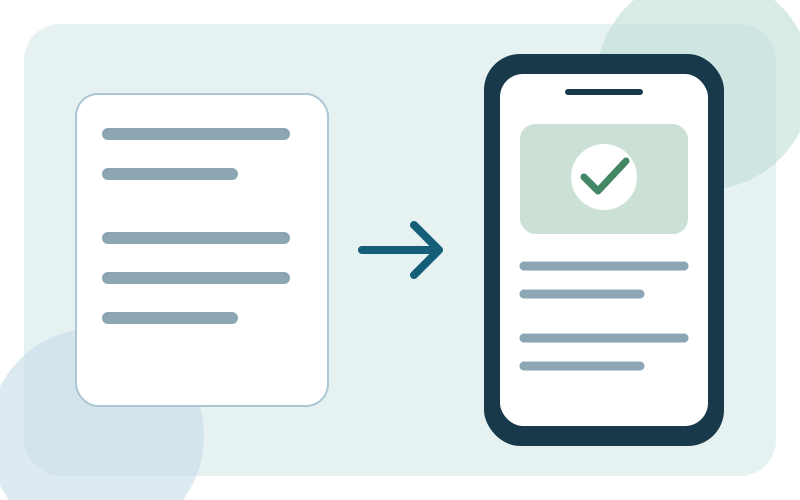
Sign in to your account
Log in or register, then open the business creation form.
Set up your business
Choose your sector and a menu, services or product catalog format. Complete contact, hours, languages and currency settings.
Add or import products
Create products manually, upload Excel or read images and PDFs with Menu Ai. Review prices, ingredients and variants before saving.
Review and share
Choose a theme and brand colour, then check the phone preview. Save, review the published catalog and share its link or QR code.
Before you share
- Item names and prices are correct.
- Images load and descriptions are readable.
- Opening hours, contact details and languages are complete.
- The QR code opens the menu on another phone.
Tools for your restaurant menu
Start with an existing file, prepare menu languages and manage category discounts. Explore the workflows and examples.
Import a menu from PDF, images or Excel
Read a PDF or menu photo with Menu Ai, or import Excel. Review categories, prices and variants before saving them to your restaurant menu.
Learn moreManage a multilingual restaurant QR menu
Choose your menu languages and prepare translated item names, descriptions and categories. Check each language before sharing your restaurant QR menu.
Learn moreManage menu category discounts
Enter a separate discount percentage for each menu category and save the changes together. Check the resulting prices in your restaurant QR menu.
Learn moreYour business, in one link.
Prepare your catalog, check its appearance and share it with customers.