








How to create a QR menu: a step-by-step guide for restaurants
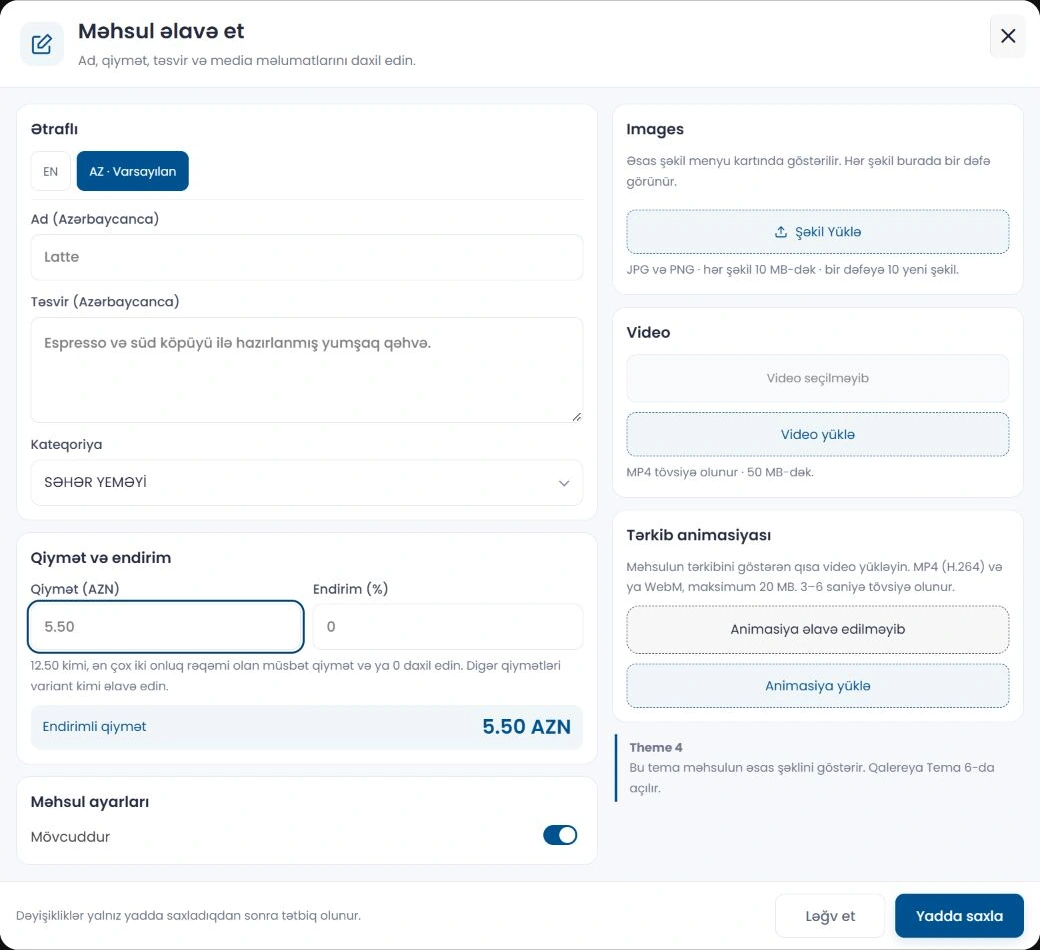
Before switching to a QR menu, think about what your guests will see: clear categories, correct prices and easy-to-read product names. In Menu-in, you can prepare this information in the dashboard and share it through a menu link and QR code.
1. Start with your restaurant details
After signing in, open the restaurant creation section. Enter the restaurant name, menu link and contact details. Choose a short, memorable menu link. A logo, cover image and weekly opening hours also give guests an initial impression of your venue.
2. Divide the menu into clear categories
Create categories that suit your venue, such as coffee, cold drinks, main courses and desserts. Then add products with a name, description, price and image. Rather than dividing categories too finely, focus on where guests would expect to find the product they want.
3. Check the appearance on a phone screen
Review the themes in the restaurant form and choose a suitable colour and font. Check appearance changes in the phone preview; after saving, also open the published catalog on your phone. Carefully check long product names, prices and image cropping.
4. Prepare and test the QR code
Open the restaurant’s QR code section in the dashboard. Scan the code with another phone before printing it. Leave clear space around the code and avoid surfaces that create strong glare. Confirm that scanning the code takes guests to the correct restaurant menu.
5. Keep information up to date after sharing
When prices, descriptions or opening hours change, update them in the dashboard and save. As long as the menu address stays the same, the existing QR code continues to lead to that address. If you want to change the menu link, check printed codes again too.
Before starting, compare category, product and scan limits on the pricing page. This will help you build your menu within the capabilities of your chosen plan.
Your business, in one link.
Prepare your catalog, check its appearance and share it with customers.